Did you know you can view your monthly payroll stubs in UltiPro?
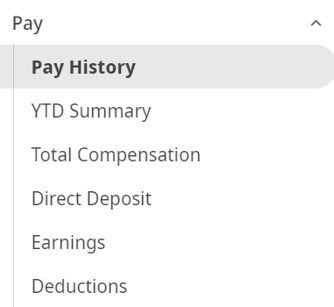
To find them, go to the Pay tab and select Pay History.
Your payroll stub also shows the Paid Time Off (PTO) hours processed for that month.
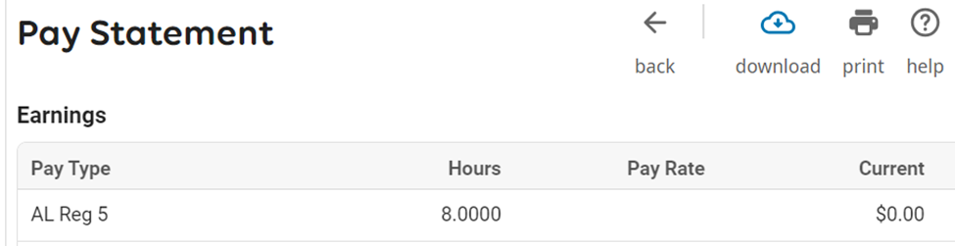
In this example, 8 PTO hours were processed during that payroll. This means the 8 approved hours were deducted from the current balance.
If you have questions about your PTO Plans or PTO Requests pages, please contact your Division Annual Leave (AL) coordinator.
Payroll Time — System Unavailable
Approved PTO hours are processed during the corresponding month’s payroll.
Please note the following:
On the day IPRS payroll is run, access to PTO is temporarily disabled to help prevent system glitches. Payroll is usually run between the 24th and 28th of each month, except in November and December, when it is processed much earlier. Please wait 24 hours before submitting a new request.
Once PTO hours are processed, the record is permanent.
Exceeding PTO Hours
If ISEs request more vacation time than they have available, and the issue is not addressed promptly, their AL bank or PTO Plan will be reduced in the following year.
To review your available time, check your PTO Plan page under the Benefits tab.
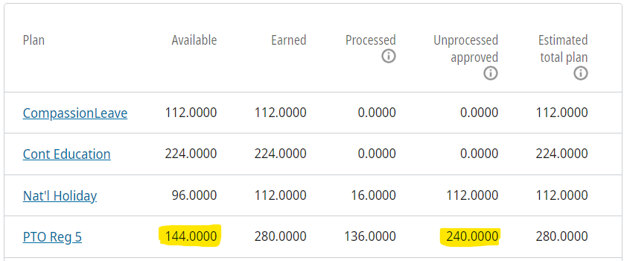
In this example, the ISE had a beginning balance of 280 hours, of which 136 hours had already been used and processed. This left an available balance of 144 hours.
However, 240 hours had been approved and were due for processing. Once those 240 hours are processed, the available balance will become negative 96 hours.
AL Request in UltiPro — Instructions
For instructions on how to submit your AL request in UltiPro, please use the link below: